
DaruGoro
ソファでゴロゴロしながら、PS5コントローラーでDAWを操作するMacアプリ。
Control your DAW from the sofa — with a PS5 DualSense controller.
無料 · macOS 12 以降 · Free · macOS 12 or later
日本語
できること
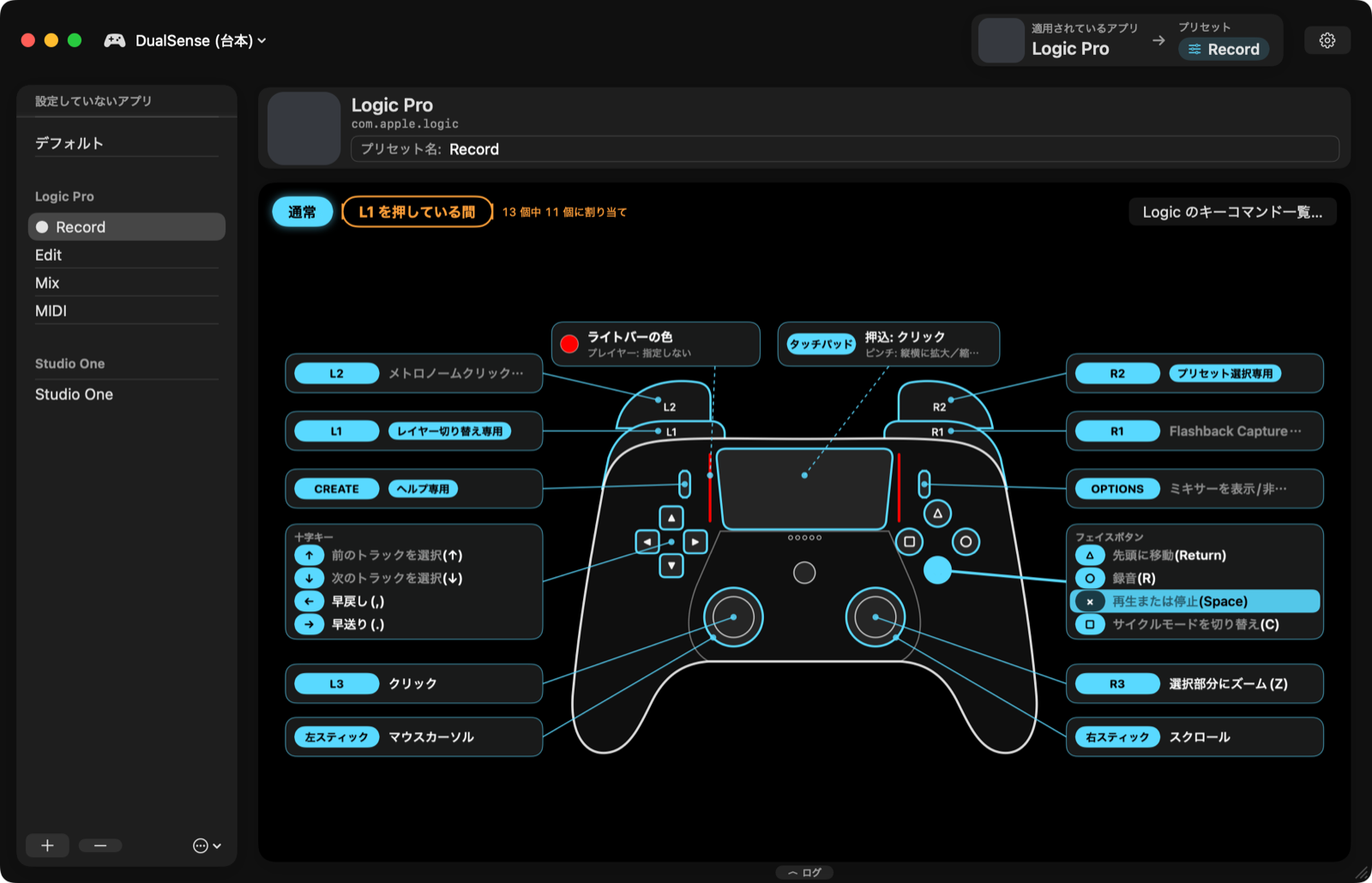
DaruGoro(だるごろ)は、PS5(DualSense)コントローラーを Mac の DAW コントローラーにするアプリです。ボタンを押すと、前面にある DAW(Logic Pro / Studio One)に合わせて割り当てたキーボードショートカットを送ります。デスクに向かわず、ソファでくつろいだまま、再生・録音・編集・ミックスができます。
- DAW ごとのプリセットLogic Pro と Studio One のプリセットを用意。編集・並べ替え・書き出し・読み込みが自由にできます。
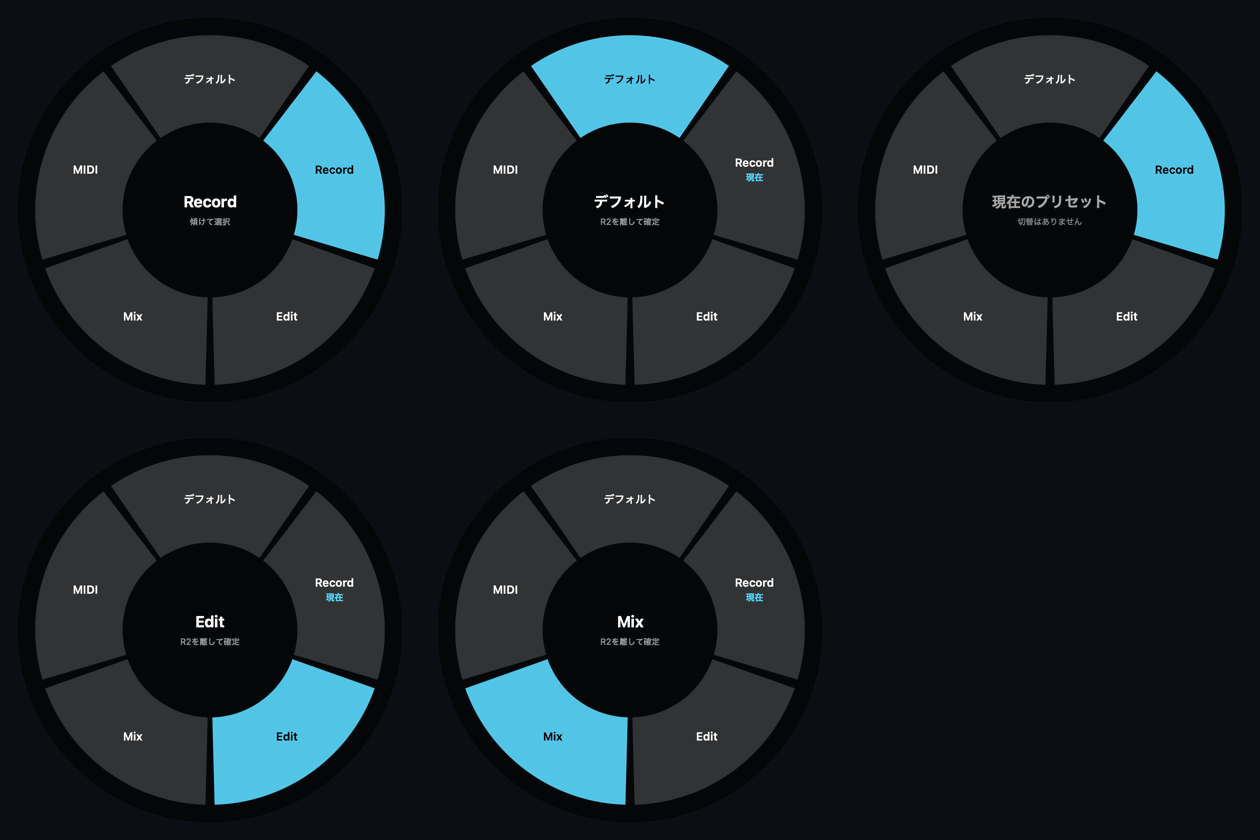
- R2 でプリセットを切り替えR2 を引いたまま右スティックを倒すと、円形のメニューからプリセットを選べます。
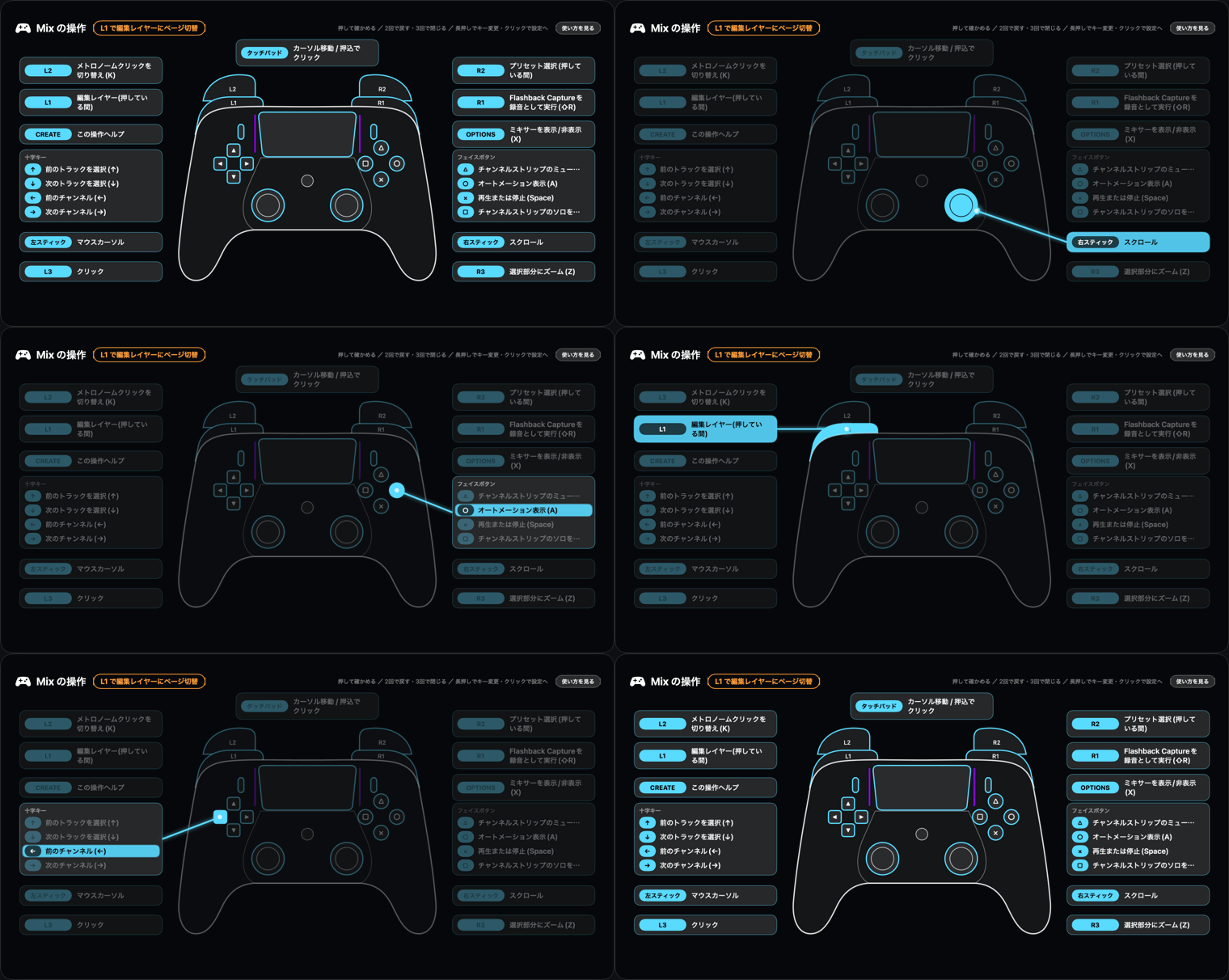
- L1 の編集レイヤーL1 を押している間、顔ボタンと十字キーが編集用の操作に切り替わります。
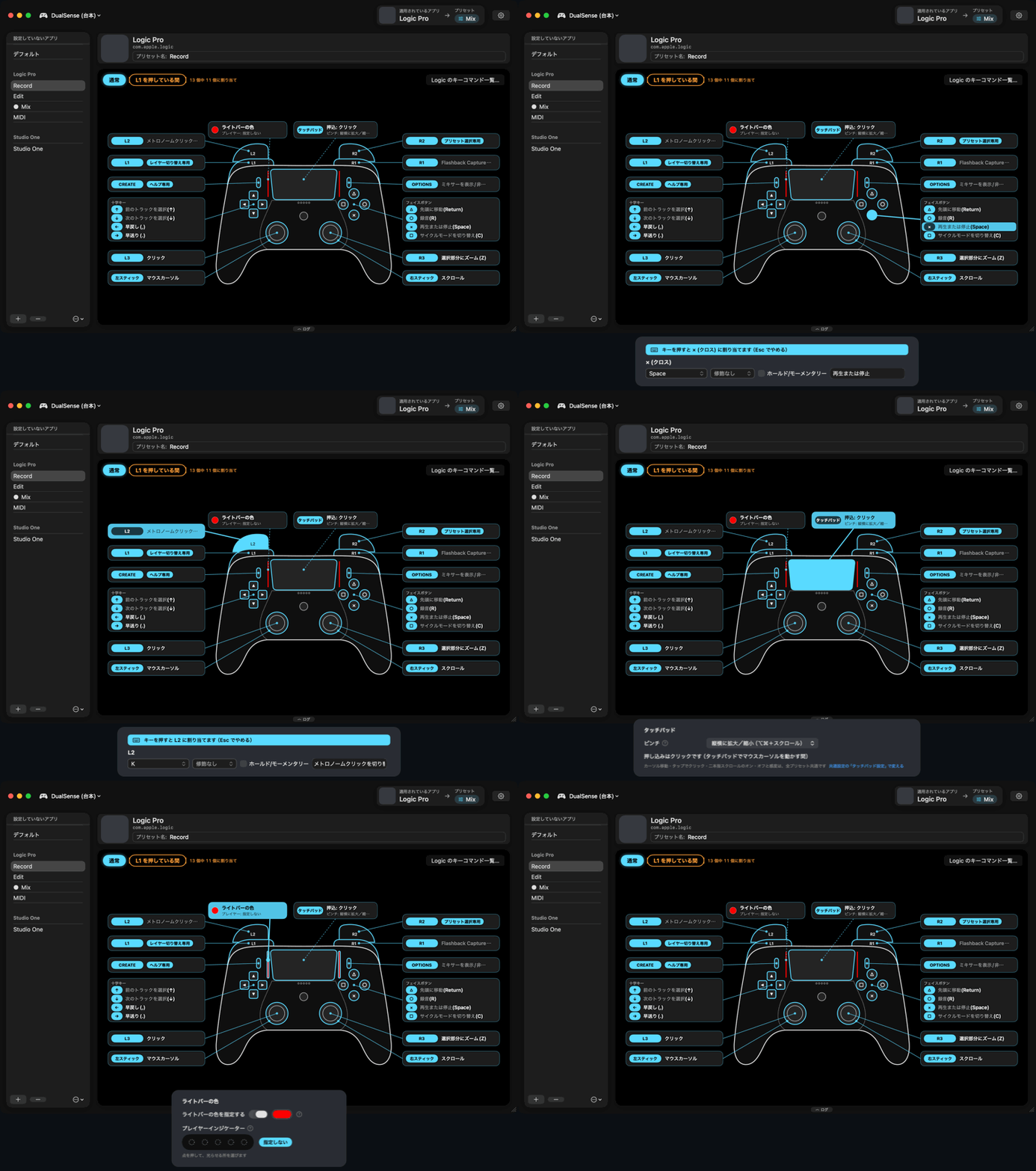
- スティックを好きな役割に十字キー・スクロール・マウスカーソル・矢印キーから選べます。
- タッチパッドでマウス操作コントローラーのタッチパッドで、移動・クリック・ドラッグができます。
- 操作ヘルプCREATE ボタンで、全部の割り当てをコントローラーの絵の周りに表示します。
動作環境
- macOS 12 Monterey 以降
- PS5 DualSense ワイヤレスコントローラー(Bluetooth または USB)
- Logic Pro または Studio One(その他のアプリは「デフォルト」のプリセットで動きます)
ダウンロード
DaruGoro は無料です。Developer ID で署名し、Apple の公証を受けています。
DaruGoro をダウンロード(.dmg)更新内容と過去の版は GitHub Releases にあります。
はじめて使うとき
- コントローラーをつなぐ。PS ボタンと CREATE ボタンを同時に長押しし、ライトバーが点滅したら、システム設定 › Bluetooth で「DualSense Wireless Controller」に接続します。USB ケーブルでもつなげます。
- DaruGoro を開き、たずねられたらアクセシビリティを許可します。システム設定 › プライバシーとセキュリティ › アクセシビリティ で DaruGoro をオンにします。DAW にキーを送るために必要です。
- DAW を前面にする。DaruGoro のウインドウの上に、DAW の名前とプリセットが出れば準備完了です。
- ボタンを押す。割り当てたショートカットが DAW に送られます。CREATE ボタンで、いつでも割り当てを確かめられます。
アプリの消し方
DaruGoro.app をゴミ箱に入れるだけなら、プリセットや設定は Mac に残ります。入れ直すと、そのまま戻ります。すべて消したいときは、次のようにします。
- 「データを消して終了…」を選ぶ。アプリのメニュー(DaruGoro の「DaruGoroを終了」の上)か、メニューバーの DaruGoro のアイコンのメニューにあります。
- 「消して終了」を押す。プリセット・設定・アクセシビリティの許可(DAWPad という名前のころの分も)を消して、DaruGoro が終了します。
- DaruGoro.app をゴミ箱に入れ、ゴミ箱を空にします。
システム設定 › プライバシーとセキュリティ › アクセシビリティ に DaruGoro が残っていたら、選んで「−」を押して外します。
アプリを先に消してしまったときは、残ったものを手で消せます。
- 残ったデータを消す。Finder の 移動 › フォルダへ移動…(Shift + Command + G)で次の場所を開き、ゴミ箱に入れます(無いものは飛ばします)。
~/Library/Application Support/DaruGoro(プリセット・共通設定・読み込んだキーコマンド一覧)~/Library/Preferences/com.amamamam.DaruGoro.plist(アプリの設定)~/Library/Saved Application State/com.amamamam.DaruGoro.savedState(ウインドウの状態)~/Library/Caches/com.amamamam.DaruGoro(キャッシュ)
DAWPad という名前のころから使っていた場合は、上の4つのDaruGoroをDAWPadにしたものも消します。 - アクセシビリティの許可を外す。システム設定 › プライバシーとセキュリティ › アクセシビリティ で DaruGoro を選び、「−」を押します(DAWPad の項目があれば、それも外します)。
- ゴミ箱を空にします。
DaruGoro は、ログイン項目・常駐するもの・ドライバを入れていないので、ほかには何も残りません。
お礼について
DaruGoroは無料です。もし役に立ったら、Ko-fi でお礼を送っていただけると嬉しいです。これからの開発の励みになります。
送らなくても、すべての機能を使えます。返信や返礼はありません。
商標について
DualSense、PlayStation および PS5 は Sony Interactive Entertainment Inc. の、Logic Pro は Apple Inc. の商標または登録商標です。DaruGoro はこれらの企業と提携しておらず、承認も受けていません。
English
What it does
DaruGoro turns a PS5 (DualSense) controller into a controller for your DAW on Mac. Press a button and DaruGoro sends the keyboard shortcut you assigned for the app in front — Logic Pro or Studio One — so you can play, record, edit and mix without sitting at your desk.
- Presets per DAWReady-made presets for Logic Pro and Studio One. Edit, reorder, export and import them freely.
- Switch presets with R2Hold R2 and tilt the right stick to pick a preset from a circular menu.
- L1 editing layerWhile L1 is held, the face buttons and D-pad switch to editing actions.
- Sticks, your wayUse each stick as a D-pad, scroll wheel, mouse cursor or arrow keys.
- Touchpad mouseMove, click and drag with the controller's touchpad.
- On-screen helpPress CREATE to see every assignment drawn around the controller.
Requirements
- macOS 12 Monterey or later
- A PS5 DualSense wireless controller (Bluetooth or USB)
- Logic Pro or Studio One (other apps work with the “Default” preset)
Download
DaruGoro is free. The app is signed with a Developer ID and notarized by Apple.
Download DaruGoro (.dmg)Release notes and older versions are on GitHub Releases.
First launch
- Connect the controller. Hold the PS button and the CREATE button together until the light bar flashes, then connect “DualSense Wireless Controller” in System Settings › Bluetooth. A USB cable also works.
- Open DaruGoro and allow Accessibility access when asked: System Settings › Privacy & Security › Accessibility, then turn on DaruGoro. This is needed to send keys to your DAW.
- Bring your DAW to the front. When the top of the DaruGoro window shows your DAW and a preset, you are ready.
- Press a button. The assigned shortcut is sent to the DAW. Press CREATE any time to see what each button does.
Uninstalling
If you only move DaruGoro.app to the Trash, your presets and settings stay on your Mac, and they come back when you install it again. To remove everything:
- Choose “データを消して終了…” (Erase Data and Quit). It is in the DaruGoro menu, just above “DaruGoroを終了” (Quit DaruGoro), and in the menu of the DaruGoro icon in the menu bar. The menus are in Japanese for now.
- Click “消して終了” (Erase and Quit). DaruGoro removes your presets, settings and its Accessibility permission (including those from its old name, DAWPad), then quits.
- Move DaruGoro.app to the Trash and empty the Trash.
If DaruGoro is still listed in System Settings › Privacy & Security › Accessibility, select it and click “−”.
If you already deleted the app, you can remove the leftovers by hand:
- Remove the saved data. In Finder, choose Go › Go to Folder… (Shift-Command-G), open each of these, and move them to the Trash (skip any that do not exist):
~/Library/Application Support/DaruGoro(presets, common settings and imported key command lists)~/Library/Preferences/com.amamamam.DaruGoro.plist(app settings)~/Library/Saved Application State/com.amamamam.DaruGoro.savedState(window state)~/Library/Caches/com.amamamam.DaruGoro(cache)
If you used the app back when it was called DAWPad, also remove the same four withDAWPadin place ofDaruGoro. - Remove Accessibility access. In System Settings › Privacy & Security › Accessibility, select DaruGoro and click “−” (remove DAWPad too if it is listed).
- Empty the Trash.
DaruGoro does not install login items, background helpers or drivers, so nothing else is left behind.
Say thanks
DaruGoro is free. If it helps you, I'd be glad if you sent a thank-you on Ko-fi. It would encourage me to keep developing the app.
Every feature works even if you don't. There are no replies or rewards.
Trademarks
DualSense, PlayStation and PS5 are trademarks or registered trademarks of Sony Interactive Entertainment Inc., and Logic Pro is a trademark or registered trademark of Apple Inc. DaruGoro is not affiliated with, nor endorsed by, these companies.